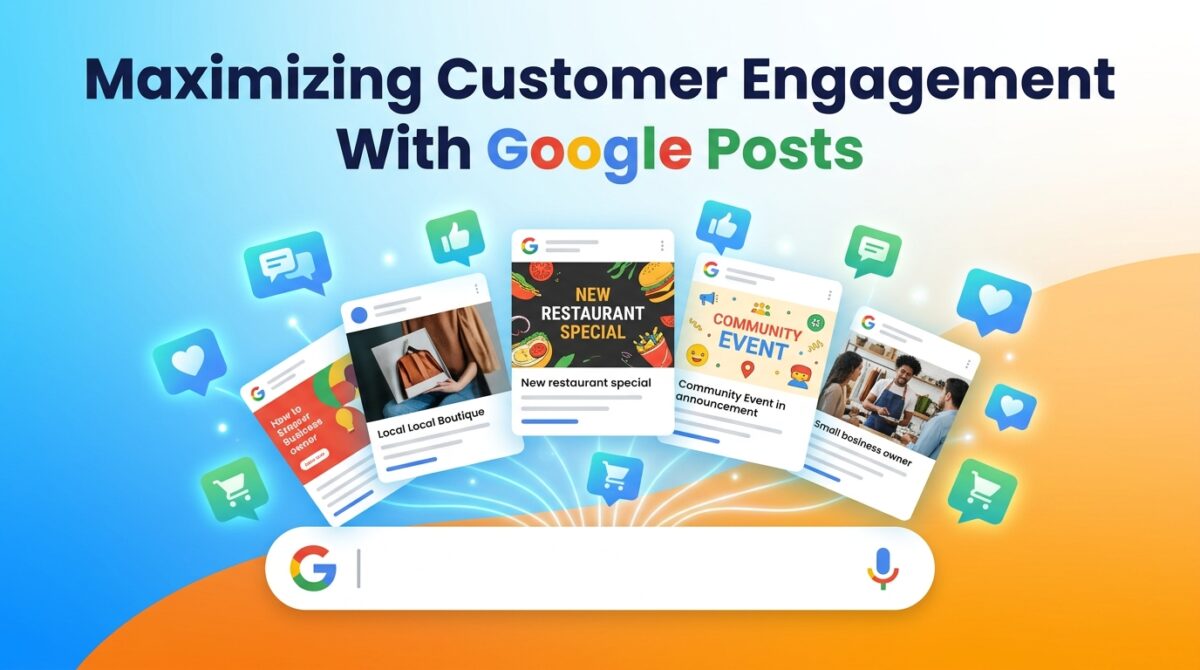
Maximizing Customer Engagement with Google Business Profile Posts
Your Google Business Profile is not just a digital business card, it is one of the most powerful customer engagement tools you are probably underusing. When optimized correctly, it becomes a dynamic hub that drives local discovery, builds trust through reviews, and converts searchers into loyal customers.
Key Takeaways: Maximizing Customer Engagement with Google Posts
- Google Posts appear directly on Search and Maps, putting your business updates in front of customers at the exact moment they are looking for you.
- There are three core post types — Updates, Offers, and Events — and knowing when to use each one makes a significant difference in how customers respond.
- An idle Google Business Profile costs you customers; consistent posting signals to both Google and searchers that your business is active and worth visiting.
- Offer posts require a title, dates, and time, and automatically include a “View Offer” button — one of the highest-converting features available on the platform.
- Scheduling posts in advance and cross-posting across multiple Business Profiles are two underused features that can dramatically scale your engagement efforts.
Most businesses set up their profile and forget it. Meanwhile, the ones consistently using Google Posts are showing up with fresh offers, upcoming events, and timely announcements right when a potential customer is searching for exactly what they sell. That is not a coincidence — it is strategy. Tools like this resource can help you build that strategy from the ground up if you are just getting started.
Google Posts Can Bring More Customers Through Your Door
Google Posts let you share announcements, promotions, events, and updates directly on your Business Profile. When customers find your latest business updates on Google Search or Maps, it actively influences whether they decide to visit, call, or buy. This is not passive visibility — it is active engagement happening at the decision-making moment.
Where Customers Actually See Your Google Posts
Your posts appear in two key places. On desktop, they show up in the “From the owner” section of your Business Profile on Search and Maps. On mobile, they can appear as featured posts — displayed prominently in place of reviews on your profile. That mobile placement is significant because it is the first thing a customer often sees before they even scroll to your star rating.
Why Posts Work Better Than Leaving Your Profile Idle
An inactive profile sends the wrong signal. When customers land on a Business Profile with no recent updates, no offers, and no activity, there is nothing pulling them toward action. Google Posts change that equation by giving customers a reason to engage right now — whether that is a limited-time discount, a weekend event, or a simple business update that shows you are open and operating.
The 3 Types of Google Posts and When to Use Each
Not all posts are created equal. Google gives you three distinct post types, and choosing the right one for the right situation dramatically increases how effective each post becomes.
Post Type Best Used For Required Fields Auto-Included Feature Update General announcements, news, business changes Description None (customizable CTA button) Offer Sales, deals, discounts, promotions Title, start date, end date, time “View Offer” button Event In-store events, webinars, community activities Title, start date, end date, time “View Event” button
Update Posts: Your Go-To for Business Announcements
Update posts are the most flexible of the three. Use them to share anything from new product arrivals to holiday hours to a quick note about a staff change. They do not require a date range, which makes them ideal for ongoing announcements. You can pair them with a photo, a video, and a call-to-action button to drive traffic to a specific page on your website.
Offer Posts: The Best Way to Promote Sales and Deals
Offer posts are built for conversion. They automatically include a “View Offer” button, which appears as soon as you publish — no extra setup needed. Beyond the basics, you can also add a coupon code, a direct link, and terms and conditions, making the whole customer journey from discovery to redemption seamless. The required fields are a title, start date, end date, and time, so every offer has a built-in urgency that nudges customers to act quickly.
Event Posts: How to Fill Seats and Drive Traffic
Event posts work particularly well for businesses that rely on foot traffic or community participation — think restaurants hosting live music, gyms running fitness challenges, or retailers holding seasonal sales events. Like offer posts, event posts require a title along with start and end dates and times. What makes them powerful is that Google may feature them automatically on mobile profiles, giving your event extra visibility without any additional effort on your part.
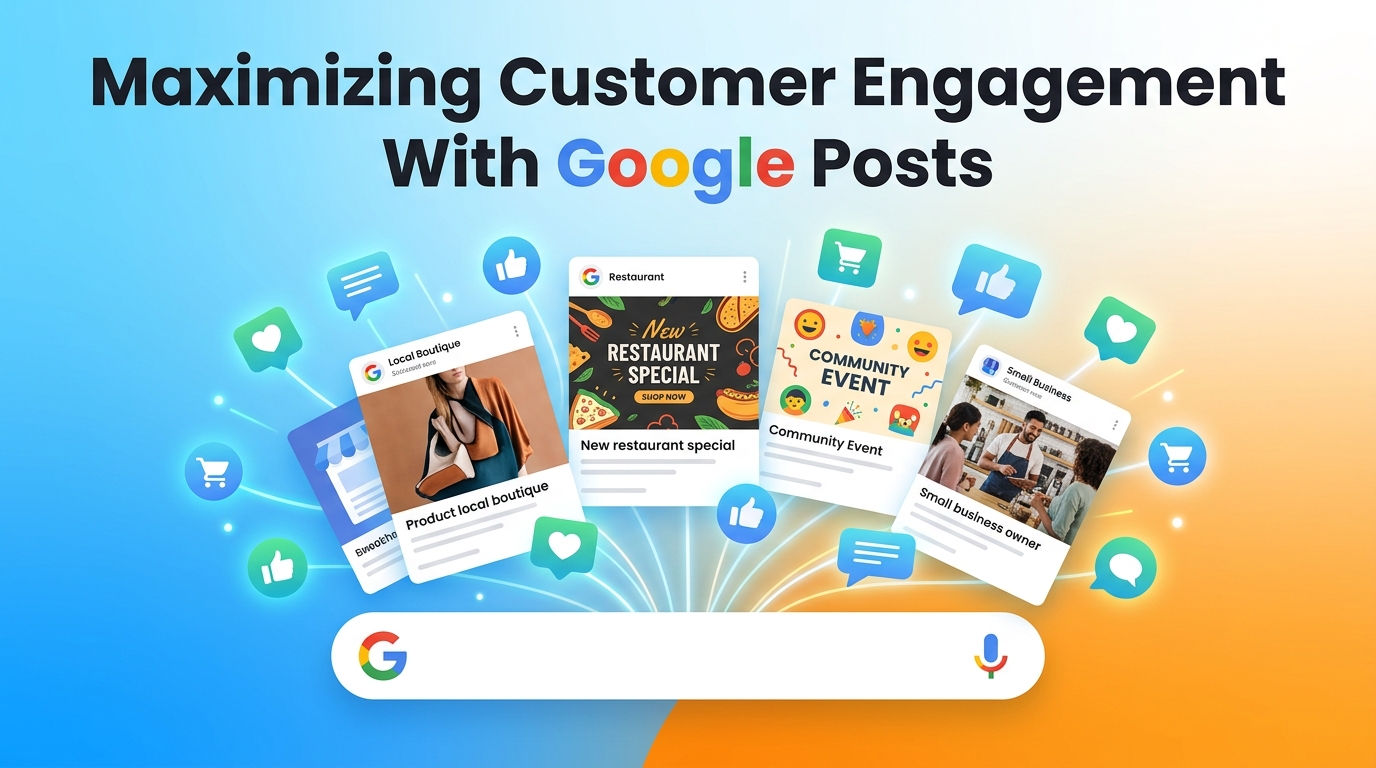
What to Include in Every Google Post
Knowing which post type to use is only half the equation. What you actually put inside each post determines whether customers keep scrolling or stop and take action.
Text, Photos, and Videos: What Actually Gets Attention
Plain text posts get the job done, but posts with photos or videos consistently pull more attention. Google allows you to add visual media to any post type, and given that your Business Profile competes with every other result on the page, a strong image is often what makes someone stop and read. Use real photos of your business, products, or team rather than generic stock images — authenticity converts better.
Videos follow the same logic but go further. A short clip showing a product in action, a behind-the-scenes look at your space, or even a quick announcement from the owner adds a human element that static images cannot replicate. Keep videos concise and front-load the most important information in the first few seconds since most viewers will not watch to the end.
Action Buttons That Tell Customers Exactly What to Do Next
Every Google Post gives you the option to add a call-to-action button, and skipping this step is one of the most common missed opportunities businesses make. Available button options include Book, Order Online, Buy, Learn More, and Sign Up — each linking directly to a URL of your choice. Match the button to the intent of the post. An offer post promoting a product sale should use Buy or Order Online, not Learn More. The more specific and relevant the button, the higher the click-through rate.
Coupon Codes, Terms, and Links for Offer Posts
Offer Post Element Purpose Pro Tip Coupon Code Gives customers a redeemable discount Use a trackable code to measure redemption rates Link Drives traffic to a specific landing page Link to the exact product or offer page, not the homepage Terms & Conditions Sets clear boundaries on the offer Keep it brief — long terms reduce trust and conversions Start & End Date Creates urgency with a deadline Shorter windows drive faster action
Adding a coupon code to your offer post is one of the simplest ways to track which customers came directly from your Google Business Profile. Use a unique code for each campaign — something like GOOG20 for a 20% discount — so you can measure redemptions separately from other marketing channels.
The link field inside offer posts is equally important. Most businesses make the mistake of linking to their homepage, forcing customers to hunt for the actual deal. Instead, link directly to the product page, checkout page, or a dedicated landing page built specifically for that offer. Every extra click between the post and the purchase is a chance to lose the customer.
Terms and conditions are optional but worth using when your offer has restrictions. Keep them tight and readable — one or two lines covering the expiry date, eligibility, and any exclusions is all you need. Burying customers in legal language at this stage does more harm than good.
How to Create and Publish a Google Post Step by Step
Creating a post is straightforward once you know where everything lives. Here is the exact process to go from blank screen to published post in under five minutes.
- Go to your Business Profile at business.google.com
- Select Posts from the left-hand menu
- Click Add post
- Choose your post type: Update, Offer, or Event
- Add your content — text, photo or video, dates if required, and a CTA button
- If scheduling, toggle on Schedule this post and set your preferred date and time
- When ready, click Post at the bottom right to publish immediately
One detail worth noting — Google explicitly states that posts containing a phone number in the description may get rejected during the review process. If you want to add additional contact numbers, do that through your Business Profile settings directly rather than inside a post.
How to Schedule Posts in Advance
Scheduling is one of the most underused features in Google Posts. Instead of scrambling to publish time-sensitive content on the day of a sale or event, you can write the post days or even weeks in advance and set it to go live exactly when you need it. When creating your post, simply toggle on Schedule this post, then select the date and time you want it to publish.
For businesses that run recurring promotions — a weekly special, a monthly offer, or a seasonal event — Google also lets you set posts to repeat. From the Repeats dropdown menu, you can choose weekly, monthly, or a custom schedule. This is a significant time-saver for any business running predictable, regular promotions.
How to Post Across Multiple Business Profiles at Once
If your business operates across more than one location, you do not need to log into each profile separately and recreate the same post over and over. Google lets you cross-post to multiple Business Profiles in a single publishing step — a feature that is invaluable for franchise owners, multi-location retailers, and regional service businesses.
After drafting your post, instead of clicking the standard publish button, you will be prompted to select which profiles you want to share it to. Select all relevant locations, then click Post. If you only want to publish to one specific profile, simply choose Skip on the multi-profile screen.
This feature works best when you have a centralized content calendar. Plan your posts monthly, write them in batches, and deploy them across all locations at once. You maintain brand consistency, save hours of manual work, and ensure no location gets left behind with an outdated profile.
Post Status: What Live, Pending, and Not Approved Mean
After you hit publish, Google reviews your post to confirm it meets their posts content policy before making it visible to customers. During this review window, your post will show a Pending status — this is normal and typically resolves within a few hours. Once approved, the status changes to Live and the post becomes visible in Search and Maps. If your post violates any content guidelines — such as including a phone number in the description or using prohibited content — it will receive a Not Approved status, and you will need to edit and resubmit it.
Tips to Get More From Every Post You Publish
Quick-Reference: Google Post Best Practices
What to Do Why It Matters Use real photos over stock images Builds authenticity and trust with local customers Match your CTA button to the post intent Increases click-through and conversion rates Keep offer windows short Creates urgency and drives faster customer action Add descriptive titles to every post Improves clarity and makes posts easier to scan Update posts when details change Keeps customers informed and avoids confusion Post consistently, not just occasionally Signals to Google that your business is active
Descriptive titles make a bigger difference than most people realize. Google itself recommends adding a descriptive title to improve your posts, and it is easy to see why — a customer scanning your profile in under ten seconds needs to immediately understand what the post is about. Vague titles like “Check This Out” do nothing. Specific titles like “20% Off All Services This Weekend Only” give customers an instant reason to keep reading.
Consistency is the underlying engine behind everything else on this list. A single well-crafted post will generate some engagement. A steady rhythm of posts — updates when things change, offers when you have something to promote, events when something is happening — builds a profile that customers and Google both treat as active and trustworthy.
Also take advantage of Google’s tip to add relevant details like start and end dates wherever applicable, even when they are not strictly required. These details give customers more context and signal to Google that your content is structured and informative, which can influence how prominently your profile is featured.
Finally, do not wait until your post is perfect to publish it. An imperfect post that goes live today is infinitely more valuable than a polished one sitting in drafts for two weeks. You can always edit a post after publishing to correct details, update links, or refresh the content — so there is no reason to let overthinking slow down your publishing cadence.
Keep Posts Fresh Since They Archive After 6 Months
Google Posts do not live on your profile forever. After six months, posts are automatically archived and no longer visible to customers browsing your Business Profile. This is not something most businesses account for — they publish a handful of posts and assume the work is done. The reality is that maintaining visible, current content requires an ongoing commitment to publishing new posts before old ones expire.
Edit Posts When Details Change Instead of Deleting Them
When something changes — a new event time, an updated offer price, a corrected link — your first instinct might be to delete the post and start over. Resist that. Editing an existing post preserves any engagement it has already accumulated and keeps the content live without interruption. Google makes editing straightforward: go to your Posts tab, find the post you want to update, and select the edit option on the right side of the post.
Deleting posts should be reserved for situations where the content is completely irrelevant or misleading — not simply because a small detail changed. A post promoting a sale that ended yesterday is better updated to reflect a new promotion than scrapped entirely. Think of each post as an asset you are maintaining, not a one-time broadcast you throw away after sending.
Situation Best Action Reason Wrong date or time listed Edit the post Keeps post live, corrects customer-facing info Offer price changed Edit the post Maintains visibility while staying accurate Broken or outdated link Edit the post Restores conversion path without losing the post Event fully cancelled Delete the post Prevents customer confusion and wasted clicks Content violates policy Edit and resubmit Corrects rejection without starting from scratch
One practical habit worth building: set a recurring reminder to review your active posts every two weeks. Scan for outdated links, expired offer dates that were not removed, or event details that shifted. Five minutes of post maintenance on a consistent schedule keeps your Business Profile sharp and prevents customers from landing on stale or inaccurate information.
Google Posts Work Hardest When Used Consistently
A single great post will move the needle briefly. A consistent posting cadence — updates, offers, and events published on a regular schedule — builds a Business Profile that both Google and customers recognize as active, credible, and worth engaging with. The businesses seeing the strongest results from Google Posts are not the ones crafting the most elaborate content. They are the ones showing up week after week with relevant, timely updates that give customers a reason to pay attention.
FAQ’s About Maximizing Customer Engagement with Google Posts
If you are still working out the details of your Google Posts strategy, these are the questions that come up most often — answered directly so you can keep moving.
How Often Should I Post on My Google Business Profile?
There is no single magic number, but posting at least once per week is a strong baseline for most businesses. This keeps your profile consistently active and ensures there is always fresh content visible to customers browsing your listing on Search or Maps.
For businesses with frequent promotions, seasonal events, or regular inventory changes, posting two to three times per week is entirely reasonable and often more effective. The key is relevance — every post should give customers genuinely useful information rather than just filling a publishing quota.
Use Google’s scheduling and repeat features to build your posting rhythm in advance so consistency does not depend on remembering to log in every week. A content calendar planned one month ahead takes the pressure off and keeps your profile active even during your busiest periods.
Do Google Posts Help With Local SEO Rankings?
Google Posts are not a direct ranking factor in the traditional SEO sense, but they contribute to the signals that indicate your Business Profile is active and well-managed. Consistent posting, combined with strong reviews, accurate business information, and regular profile updates, collectively strengthens your local search presence. Businesses with consistently active profiles tend to perform better in local search results than those with dormant listings.
Can I Add a Phone Number to My Google Post?
No — and this is a common reason posts get rejected. Google’s content policy explicitly states that posts containing a phone number in the post description may be rejected during the review process. If your post gets flagged for this reason, remove the phone number from the description and resubmit.
If you want additional phone numbers associated with your business, add them directly through your Business Profile settings rather than inside a post. That is the proper channel for contact information, and it keeps your posts clean and policy-compliant.
What Happens to My Google Posts After 6 Months?
After six months, Google Posts are automatically archived and are no longer visible to customers on your Business Profile. They do not disappear entirely — you can still access them in your Posts tab — but they stop showing up in Search and Maps. This means your engagement strategy needs to account for regular fresh content to replace posts as they cycle out of visibility.
Can I Schedule Google Posts to Publish Later?
Yes. When creating any post type, you can toggle on the Schedule this post option and select a specific date and time for it to go live. This is available directly inside the Google Business Profile dashboard at business.google.com.
You can also set posts to repeat on a recurring basis using the Repeats dropdown menu. Options include weekly, monthly, or a custom schedule — making it easy to automate predictable promotions without manually recreating the same post every cycle.
Scheduling is particularly valuable for time-sensitive content like holiday sales, weekend specials, or event reminders. Write the post when you have time, set it to publish at the optimal moment — typically mid-morning on weekdays when local search traffic tends to peak — and let the system handle the rest.